Your own enemies
Swap the ghost for a bat, a skeleton, a witch, an eyeball, or something you made up, built from ellipse(), rect(), triangle(), and arc(), and try mixing 2-3 different ones.

This guide assumes you've never used p5.js. You'll learn how drawing works, draw your own ghost, and make it move.
Select where you're completing this event!
At a club workshop, you build everything in the free p5.js web editor, so there's nothing to install.
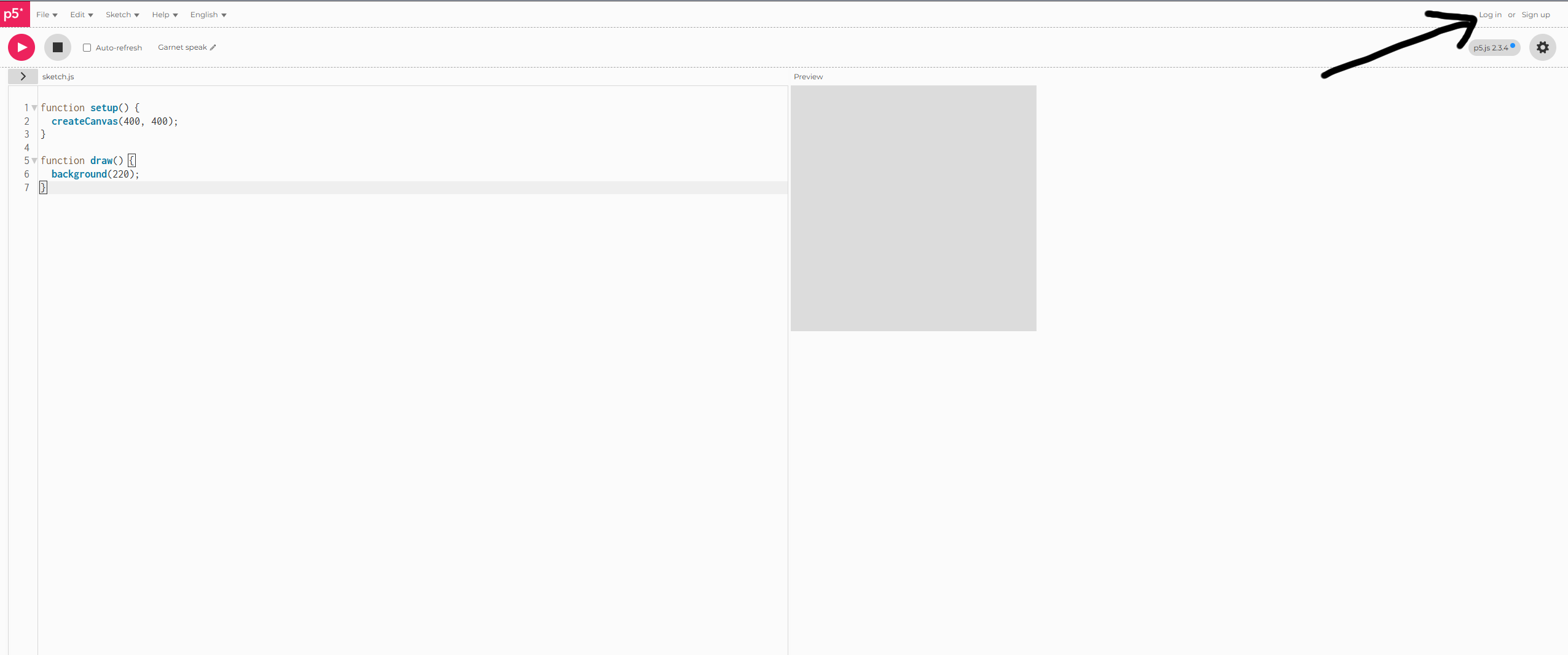 Click Sign up in the top-right corner to make an account.
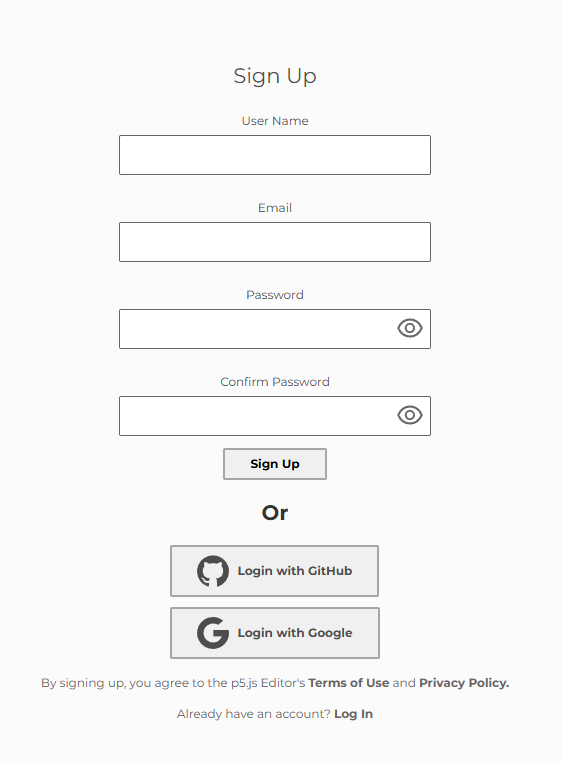 It only asks for the minimum (a user name, an email, and a password), and only your user name shows up next to your sketches, so a nickname is fine.
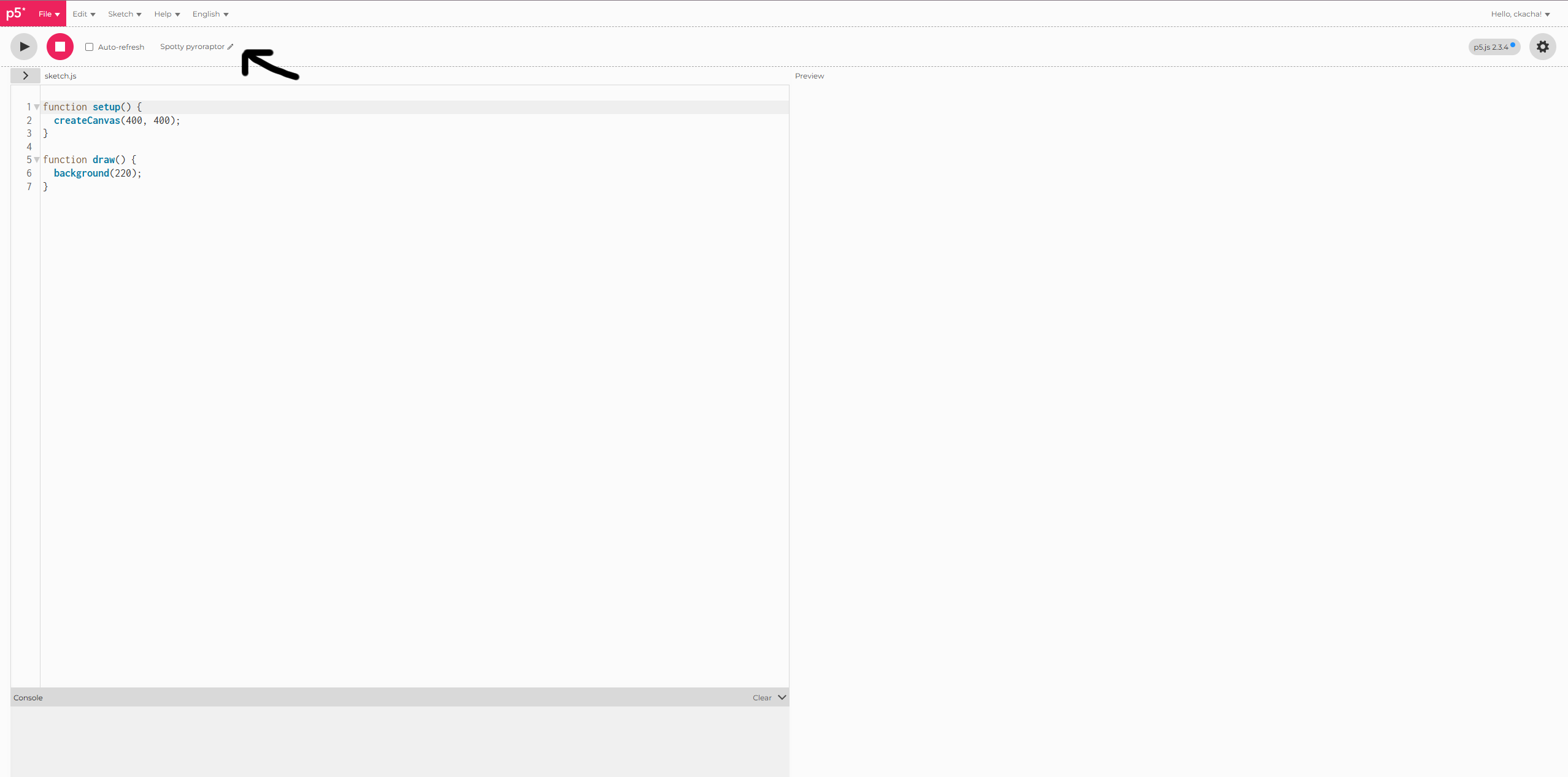 Name your project!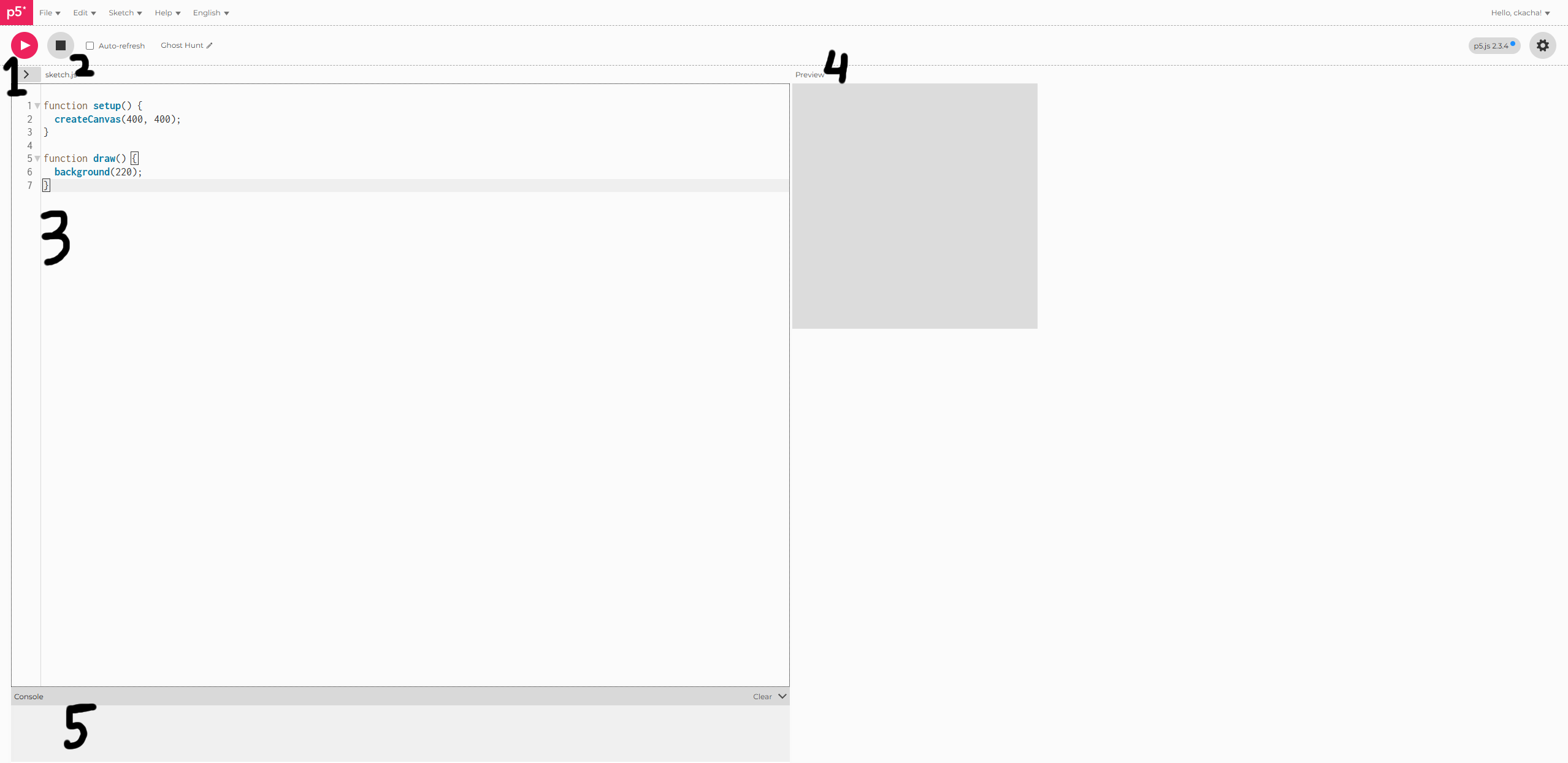
p5.js is a JavaScript library for drawing and animating in the browser. You get a canvas, a rectangle of pixels, and simple functions like ellipse() and rect() to draw on it.
Every p5.js sketch has two special functions:
setup() runs once when the sketch starts, so it's where you make the canvas.draw() runs again and again, about 60 times a second, and each run is one frame, like a page in a flipbook.The p5.js web editor starts you with this code, and in VS Code you can paste it into sketch.js:
function setup() {
  createCanvas(400, 400);
}

function draw() {
  background(220);
}Here's what each line does:
createCanvas(400, 400) makes a drawing area 400 pixels wide and 400 pixels tall, and it's in setup() because you only need one canvas.background(220) paints the whole canvas one color, and with a single number that color is a shade of gray from 0 (black) to 255 (white), so 220 is light gray. It's in draw() so every frame starts from a clean canvas.Every point on the canvas is an (x, y) pair, starting from (0, 0) in the top-left corner, with x growing to the right and y growing downward. On a 400 × 400 canvas the middle is (200, 200), and inside your sketch width and height hold those sizes for you.
First, set up the game screen: change the canvas to createCanvas(480, 360) (wider, like a game) and the background to background(15, 10, 25) (dark purple, for a spooky night), since the rest of the guide uses these values.
Drawing in p5.js works like painting: you pick a color, then draw a shape with it, and shapes drawn later go on top.
background(r, g, b) fills the whole canvas, so calling it at the start of draw() wipes the last frame.fill(r, g, b) sets the color for the next shapes, with each number from 0-255 for red, green, and blue.noStroke() turns off outlines.ellipse(x, y, w, h) draws a circle or oval centered at (x, y).rect(x, y, w, h) draws a rectangle from its top-left corner.In setup(), make the canvas game-sized:
function setup() {
  createCanvas(480, 360);
}
In draw(), paint the night sky and turn off outlines:
background(15, 10, 25);
noStroke();
Below that, draw a pale yellow moon, where the four numbers are its x, y, width, and height:
fill(255, 240, 200);
ellipse(400, 60, 50, 50);
Then dark purple ground along the bottom:
fill(40, 30, 50);
rect(0, 300, 480, 60);
400, 60, or change the fill numbers to make a blood-red moon.Now make a drawing of your own and put it inside a function with x and y parameters, so you can draw it anywhere, as many times as you want, with one line.
Every shape inside uses x and y as its starting point, so the eyes move with the body.
Add this function at the bottom of your sketch to draw a minty body with two dark eyes:
function drawGhost(x, y) {
  noStroke();
  fill(220, 255, 230);
  ellipse(x, y, 60, 60);

  fill(20);
  ellipse(x - 12, y - 5, 10);
  ellipse(x + 12, y - 5, 10);
}
Then call it in draw(), where each call draws one ghost, so this draws two:
function draw() {
  background(15, 10, 25);
  drawGhost(240, 180);
  drawGhost(100, 80);
}ellipse(), giving it a hat with rect(), or changing its color. Keep the body about 60 pixels wide, since the click check later expects that.random(a, b) gives you a different number between a and b every time you call it, which is the key to anything unpredictable.
First, store the ghost's position in a variable so it can change between frames. { x: 240, y: 180 } is an object, which lets one variable hold both numbers.
Nudge the ghost a random amount every frame so it shivers and wanders around like it's possessed.
At the top of your sketch, store where the ghost is:
let ghost = { x: 240, y: 180 };In draw(), nudge it a little every frame, then draw it:
function draw() {
  background(15, 10, 25);
  ghost.x += random(-3, 3);
  ghost.y += random(-3, 3);
  drawGhost(ghost.x, ghost.y);
}This is what Ghost Hunt does: every 60 frames (about one second), the ghost jumps to a random spot. frameCount counts frames since the start, and % gives the remainder of a division, so frameCount % 60 === 0 is true once every 60 frames.
At the top, make the ghost and set how many frames to wait between jumps:
let ghost;
let spawnEvery = 60;
Add a function that moves the ghost to a random spot:
function spawnGhost() {
  ghost = { x: random(40, width - 40), y: random(40, height - 40) };
}
Call it once in setup() so the ghost has a starting spot:
function setup() {
  createCanvas(480, 360);
  spawnGhost();
}
In draw(), jump every 60th frame, then draw the ghost:
function draw() {
  background(15, 10, 25);
  if (frameCount % spawnEvery === 0) spawnGhost();
  drawGhost(ghost.x, ghost.y);
}40 and width - 40 keep the ghost from spawning half off the edge, and your drawGhost() function from step 4 stays at the bottom of the file.p5.js calls mousePressed() every time you click, and mouseX and mouseY hold where the click happened.
dist() measures the distance between two points. Since the ghost is 60 pixels wide, its radius is 30, so any click closer than 30 pixels to its center is a hit, and an if statement runs code only when that's true.
At the top, start the score at zero:
let score = 0;
Add mousePressed(), so a hit adds a point and moves the ghost somewhere new:
function mousePressed() {
  if (dist(mouseX, mouseY, ghost.x, ghost.y) < 30) {
    score++;
    spawnGhost();
  }
}
At the end of draw(), show the score:
fill(255);
textSize(16);
text('Score: ' + score, 12, 26);millis() is how many milliseconds have passed since the sketch started (1000 ms = 1 second), so you can save it when the round begins and subtract to see how long the round has lasted.
At the top, set how many seconds a round lasts:
let duration = 30;
let startTime;
In setup(), save when the round started:
startTime = millis();
In draw(), before drawing the ghost, work out how much time is left:
let elapsed = (millis() - startTime) / 1000;
let timeLeft = max(0, duration - elapsed);
Then show it in the top-right corner:
textAlign(RIGHT, TOP);
text('Time: ' + ceil(timeLeft), width - 12, 10);One last idea: a state variable decides what the screen shows: 'start' shows a title, 'play' runs the game, and 'over' shows your score, with a click moving between them.
Here's the complete game, piece by piece. Clear the editor, then copy each piece in, top to bottom:
Start with the variables, where state is always one of start, play, or over:
let ghost;
let score = 0;
let duration = 30;
let startTime;
let state = 'start';
let spawnEvery = 60;
setup() makes the canvas and the first ghost:
function setup() {
  createCanvas(480, 360);
  spawnGhost();
}
draw() begins with the start and game-over screens, and return stops draw() early so nothing below it runs:
function draw() {
  background(15, 10, 25);

  if (state === 'start') {
    textAlign(CENTER, CENTER);
    fill(255);
    textSize(22);
    text('Click to start', width / 2, height / 2);
    return;
  }

  if (state === 'over') {
    textAlign(CENTER, CENTER);
    fill(255);
    textSize(22);
    text('Game over\nScore: ' + score + '\nClick to retry', width / 2, height / 2);
    return;
  }
Still in draw(): end the round when the time runs out:
  let elapsed = (millis() - startTime) / 1000;
  let timeLeft = max(0, duration - elapsed);
  if (timeLeft <= 0) {
    state = 'over';
    return;
  }
Then move and draw the ghost, show the score and time, and close draw():
  if (frameCount % spawnEvery === 0) spawnGhost();
  drawGhost(ghost.x, ghost.y);

  textAlign(LEFT, TOP);
  fill(255);
  textSize(16);
  text('Score: ' + score, 12, 10);
  textAlign(RIGHT, TOP);
  text('Time: ' + ceil(timeLeft), width - 12, 10);
}
mousePressed() starts a new round from the start or game-over screen, and scores hits during play:
function mousePressed() {
  if (state === 'start' || state === 'over') {
    state = 'play';
    score = 0;
    startTime = millis();
    spawnGhost();
    return;
  }
  if (dist(mouseX, mouseY, ghost.x, ghost.y) < 30) {
    score++;
    spawnGhost();
  }
}
Last, the two helper functions from earlier:
function spawnGhost() {
  ghost = { x: random(40, width - 40), y: random(40, height - 40) };
}

function drawGhost(x, y) {
  noStroke();
  fill(220, 255, 230);
  ellipse(x, y, 60, 60);
  fill(20);
  ellipse(x - 12, y - 5, 10);
  ellipse(x + 12, y - 5, 10);
}Now it's time to do your own thing! We want you to learn and try new things on your own, and it's no fun if you copy it from the guide or from AI. Here are some ideas to get you started:
Swap the ghost for a bat, a skeleton, a witch, an eyeball, or something you made up, built from ellipse(), rect(), triangle(), and arc(), and try mixing 2-3 different ones.
Pick a palette and stick to it: toxic swamp green, blood-red moon, candy-corn orange, or icy blue, then change every fill() and background() to match.
Use textFont('Georgia') or another font, plus textStyle(BOLD) and a bigger textSize() for your title.
Draw a graveyard with tombstones, a haunted house, a full moon, stars, or fog instead of a plain background.
Give it a name and a reason to click, like catching bats before sunrise, feeding candy to a monster, or zapping zombies off your lawn, and put it on the start screen.
Change the timer, the ghost size, how fast it jumps, or what counts as a point, or add a creature that loses you points if you click it.
Here are some additional features you can add! There's no code to copy here: each one points you to the p5.js docs and an example you can open, play with, and figure out for your own game. Want to see them all in action? Try the expanded demo, or pick apart the Circle Clicker example.
Make your creature shiver in place by nudging its position a tiny random amount every frame.
random()Give your creature a speed in x and y so it drifts around and bounces off the edges of the canvas.
constrain()Draw something new, like a pumpkin or a bat, out of arcs, triangles, and custom shapes, then use it as a bonus target or something to avoid.
Add a fourth number to fill() for transparency, then use sin() and map() to make your creature fade in and out.
Use lerp() to shrink the time between jumps as the round goes on, so the game keeps speeding up.
Keep a list of tiny dots that fly out when you catch something, fade away, and get removed from the list.
Your base game works? Try these extra things to get a sticker sheet and more money for candy!
Give your effects your own art, add your own sound effects, or both, like a burst you drew for when a ghost is caught or a "boo" you recorded yourself.
Add two extra levels that each get harder than the last, by making the ghost faster, giving less time, adding more ghosts, or throwing in something new to dodge.
Open the bonus page for hints, docs, and tools for each challenge.
The p5.js reference lists every function with examples you can try, so look up these 5 and use 1-2 of them in your game:
loadImage() and image(): draw your own picture instead of shapes.rotate(): spin or tilt your creature.noise(): smooth, floaty movement that's less jittery than random().lerpColor(): fade between two colors, like a sky turning blood red.keyIsDown(): add keyboard controls.Once your game is finished in the p5.js web editor, here's how to share it: